Похожее видео
×
How to do Automatic Lipsyncing in Blender with Papagayo
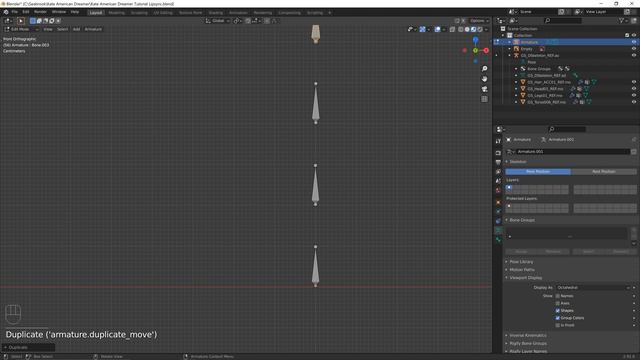
Видео: How to do Automatic Lipsyncing in Blender with Papagayo
This is a comprehensive tutorial on how to use automatic lipsyncing in Blender through the program Papagayo. Dead By Daylight Rendering Discord Server: Important: The blender plugin no longer works please use the google drive link below with an updated plugin or this plugin instead: Papagayo link: Google Drive Link to Finished Blender File: How to import Survivors from Dead By Daylight into Blender: Important note: You only need to do the setup for the Pose Library once. So once you have done it you only need to do the Papagayo timings for any other lipsyncing you wish to do. Credit goes to Levonotion Studios who made a tutorial from where I learnt how to do this method. However I wanted to make a fully comprehensive tutorial on how to make the shape keys and pose library and share some of the experience I gained from learning this process. For your convenience I have also included timecodes of all the different sections and steps in the video. Timecodes: 00:00 - Final Product Preview 01:13 - Dead By Daylight Rendering Discord 01:28 - 0. Prerequisite Software 03:40 - 1. Importing a Viseme Reference Image 04:45 - 2. Creating Shape Keys with Proportional Editing Sculpting 11:58 - 3. Key Mouth Shapes for English Speech 13:10 - 4. Moving Bones onto a Separate Bone Layer 14:29 - 5. Creating Viseme Shape Keys through Posing the Skeleton 44:15 - 6. Creating Drivers on Each Shape Key 48:30 - 7. Connecting Drivers to Driver Armature 52:30 - 8. Creating the Lib_Phonemes Pose Library 1:09:26 - 9. Opening Papagayo 1:10:02 - 10. Trimming Audio in Audacity 1:11:40 - 11. Setting Timings for Speech in Papagayo 1:25:45 - 12. Importing the Papagayo Timings into Blender 1:27:30 - 13. Importing Audio into Blender 1:30:25 - 14. Adding Animations on Top of Lipsync This video is under the creative commons zero license. ----------------------------------------------------------------- Music featured in this video: Nier Automata OST Peaceful Sleep - Keiichi Okabe,

2026-04-18 в 02:14:47
2024-06-02 в 15:03:52
2024-06-02 в 14:45:54

2026-04-18 в 02:12:48
2024-06-03 в 20:22:38

2026-04-18 в 04:33:49
2026-04-18 в 02:04:55
2024-06-03 в 18:46:55

2026-04-18 в 02:29:43

2026-04-18 в 04:30:07
![Shrek T-pose (naturally Occurring) - [Elder Scrolls IV Oblivion]](https://pic.rtbcdn.ru/video/f9/f8/f9f8e1129adccbdc17c1fd4cd4a46a81.jpg)
2024-06-03 в 17:44:58